
Reset dbell password
Resetting dbell password is a two step process:
- Reset dbell app password
- Reset dbell device password
- Sync dbell with your app
1. Reset dbell app password
dbell app login password and the dbell device password is same until you reset either dbell app or dbell device.
If you forgot the app login password, you can easily Reset it from the app. It should be noted, resetting app login password will not necessarily reset dbell device password due to security.
The moment you reset the dbell app login password - you will have two password for your dbell, one for app login and one for dbell device. they are no longer synced. You should sync it.
How to Reset dbell app login password:
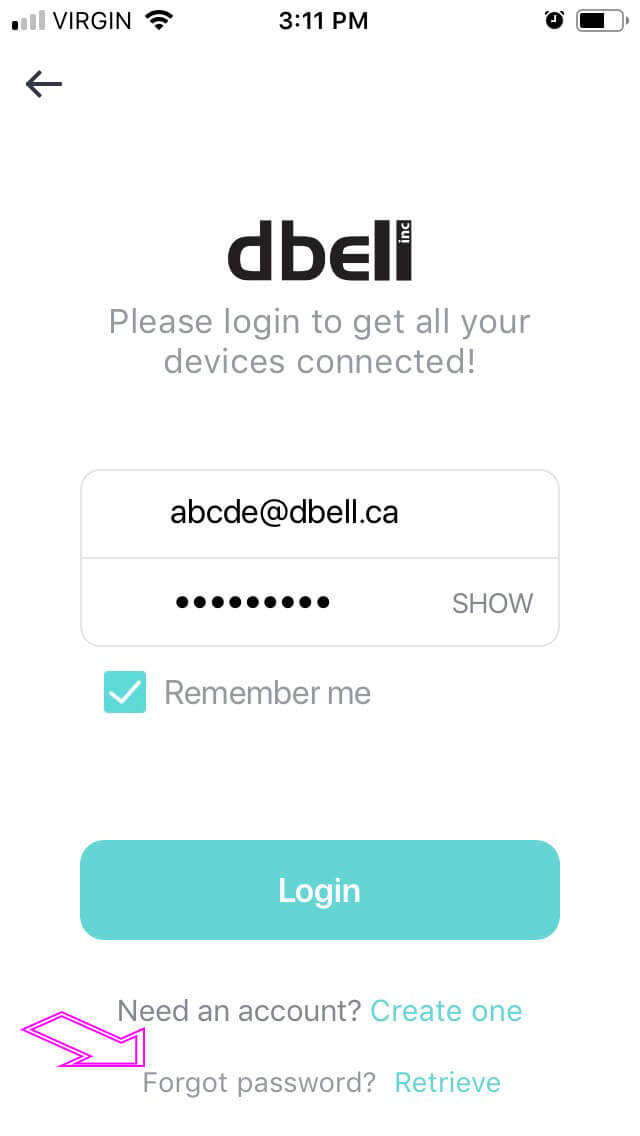
- Open dbell app
- Click Sign In
- Click Forgot passowrd? "Retrieve"
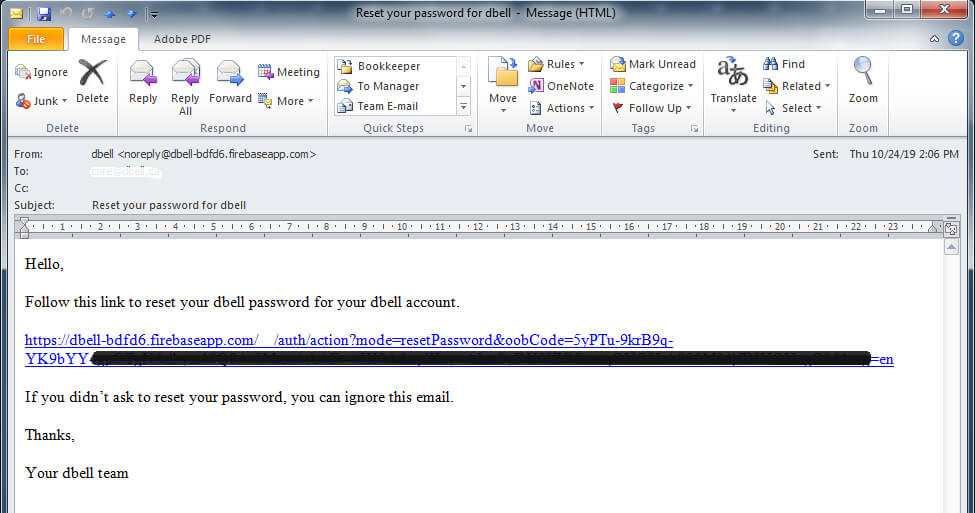
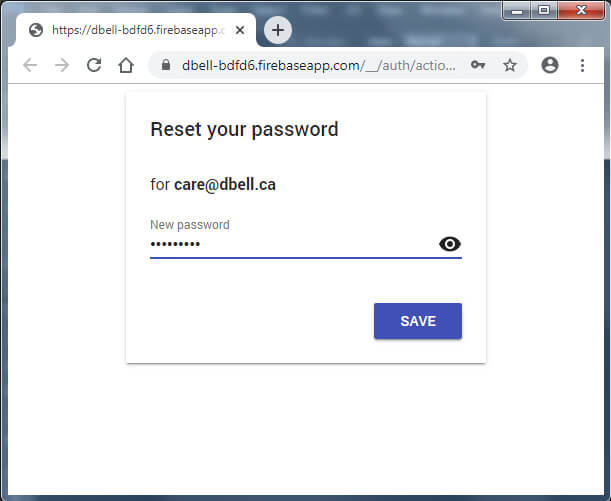
- Check your email for password reset link. If you used fake email, you will not receive an email.
2. Reset dbell device password
- Unplug dbell indoorbell/plug-in chime from wall outlet
- Make sure dbell video doorbell is connected to power
- Press and hold the doorbell call button until you hear “RESET SUCCESSFUL”
- Wait 1-minute for dbell to restart before continuing setup
3. Sync dbell with app
- The device you reset if that is in the app, delete it from //Menu//Edit//Delete
- do app setup to sync by pressing Add dbell
- Setup dbell like as if you are doing a new dbell setup or
- If you are connected via data cable -> Select Network Setup and follow in-app instructions
NOTE: - It may take from 90 secs to 330 seconds depending on the firmware in dbell. We recommend running a stopwatch to know how long you are pressing call button. This method works 99.9% time - so if it doesn't work for you first-time, please try again and make sure you hold it steadily.
- All the settings of dbell will be set to factory defaults.
If Reset fails, follow the - Reset fail recovery process shown below.
Reset fail recovery process:
If dbell doesn't say "Reset successful" after 5.5 minutes holding the button, most likely cause is SD card is corrupted.
If your dbell stops working or you can't connect to it anymore even with the Ethernet cable connected, you can resolve it by removing the SD card:
- Look at the back of the dbell for SD card underneath the white connector showing arrows. Push the arrow as shown. Push the SD card to release.
- Remove SD card - see how to remove SD hard here
- Power cycle dbell - wait 1 min. to hear 'Welcome'
- Now retry to reset dbell. If everything works well - insert SD card and format.
- If format shows error or dbell won't start again - replace SD card.
- Login and setup dbell with the app
Comments
0 comments
Please sign in to leave a comment.